

Rules and Conditions
Conditions in workflows govern decision paths, approvals, and deadlines, ensuring steps are only triggered once all criteria are met.
Before you start
- You have administrator permissions to manage workflows.
- The relevant case types and responsibilities are defined in your organization.
How to do it
- 1
Open Cases & workflows and select Workflows.
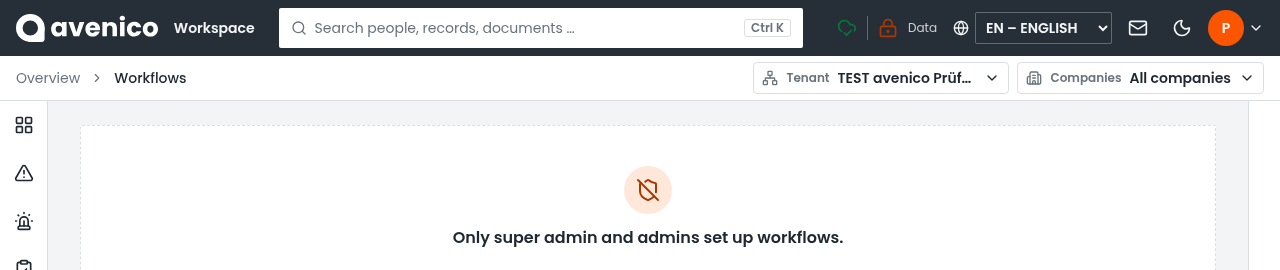
Example from a test account with fictional data - 2
Choose the workflow you want to edit from the overview.
- 3
Specify the conditions and criteria that require approvals or intermediate steps.
- 4
Determine whether sign-off is required from a single authorized person or multiple participants.
- 5
Set the deadlines and intervals for reminders and escalations, then save your configuration.
What happens next
Troubleshooting
Does a logged absence postpone a statutory deadline?
No. An absence does not pause or postpone statutory deadlines.
Does taking over clarification automatically mark a case as completed?
No. Taking over clarification pauses automatic escalation, but does not fulfill or resolve the underlying task.
Updated: 24/11/2026 · Version 2 · #20785251
Changes in this version: fix:2026-11-24:20785251