

Switching tenant and company
If you have access to multiple tenants or companies, switch the data context directly from the top header bar.
Before you start
Hinweis:
- Your user account is assigned to multiple tenants or companies.
How to do it
- 1
Open the application and locate the header bar at the top of the screen.
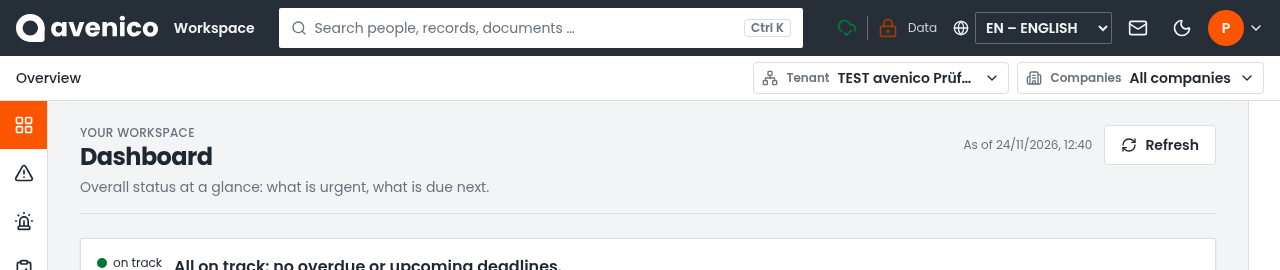
Example from a test account with fictional data - 2
To switch tenants, click the button starting with Mandant and select the desired tenant.
- 3
To filter by company, click the button starting with Unternehmen and select the desired company or all companies.
- 4
The displayed overviews, cases, and deadlines update immediately to reflect the selected context.
What happens next
Tipp: You are working in the newly selected context. Data outside your permissions remains hidden on the server side.
Troubleshooting
Achtung:
A specific company or tenant is not displayed in the selection list.
Your user account is not authorized for this area. Contact your administrator to extend your permissions.
Updated: 24/11/2026 · Version 2 · #45410677
Changes in this version: fix:2026-11-24:45410677