

Release, post and share an operating instruction by QR code
After release you get the notice as PDF and a QR code through which employees always see the released version.
Before you start
Hinweis:
- All required sections are filled in.
- You have the Editor or Admin role.
How to do it
- 1
Click Release at the top, check the next review date and confirm. The version is stored unchangeably.
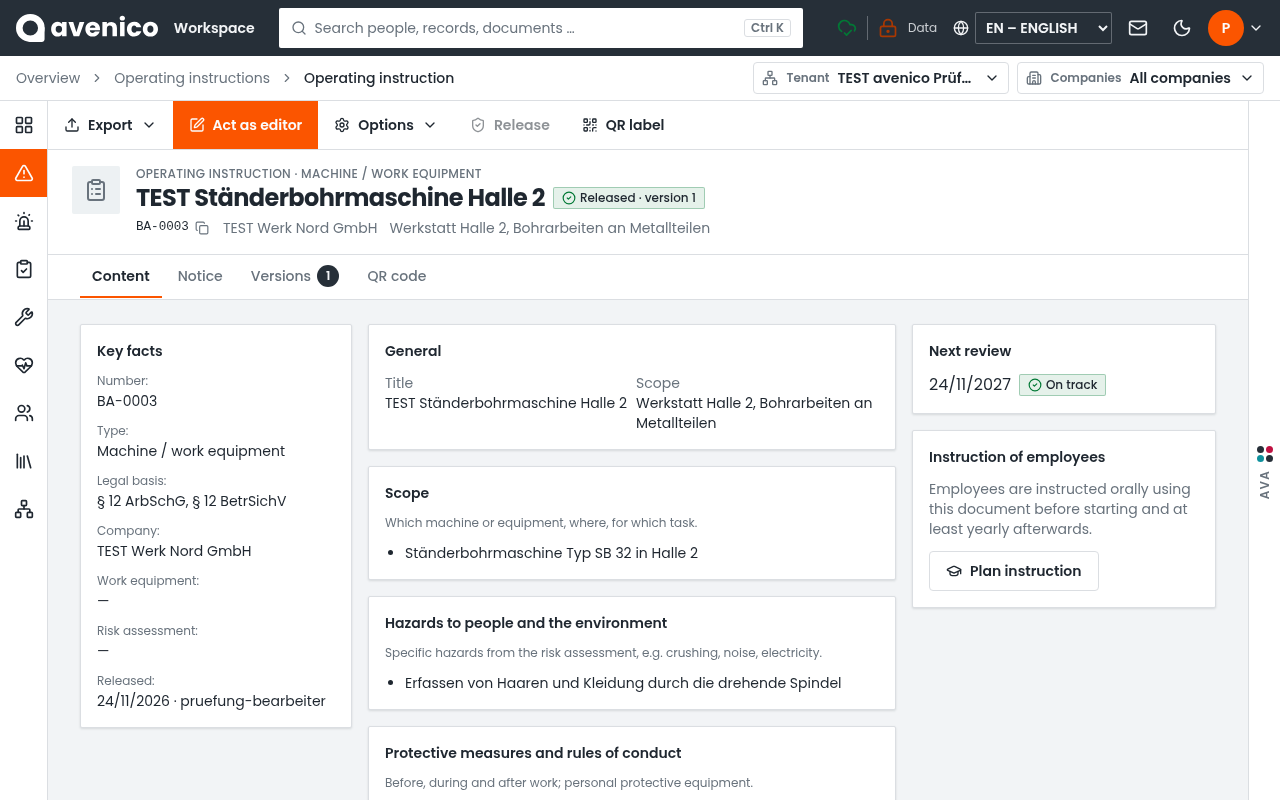
Example from a test account with fictional data - 2
Open the Notice tab. Use Export for the PDF and QR label for the QR code at the workplace.
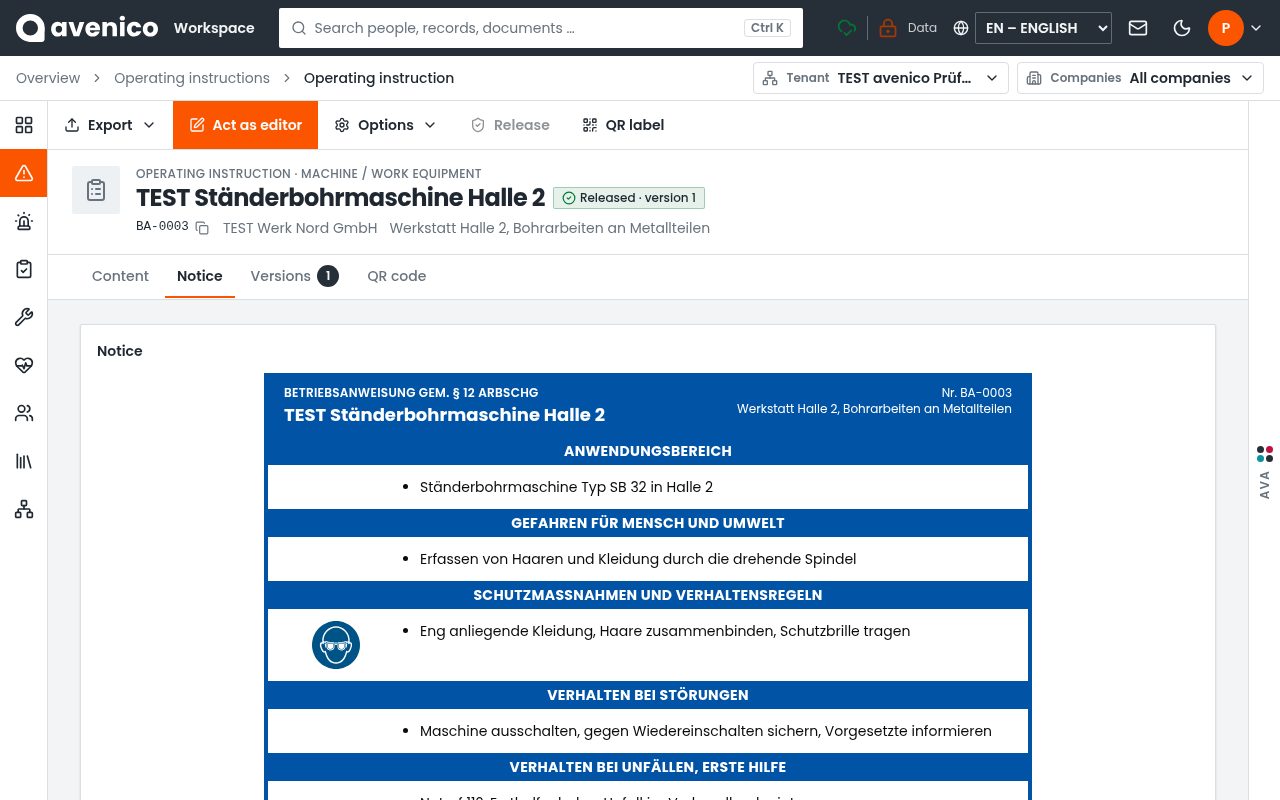
Example from a test account with fictional data
What happens next
Tipp: The notice and QR code show the released version. If you change something afterwards, it is a new draft and the notice stays the same until the next release.
Troubleshooting
Achtung:
Why is Release greyed out?
Hover over it. It shows the reason, for example which sections are still empty.
Updated: 24/11/2026 · Version 1 · #72390542
Changes in this version: seed:help-2026-11-24b:ba:release