

I cannot see a company
If you cannot see a company, this may be due to the current filter selection in the header or your account permissions. Here is how to check your assignment.
Before you start
- You are logged into the workspace.
How to do it
- 1
Open Members & roles in the navigation menu.
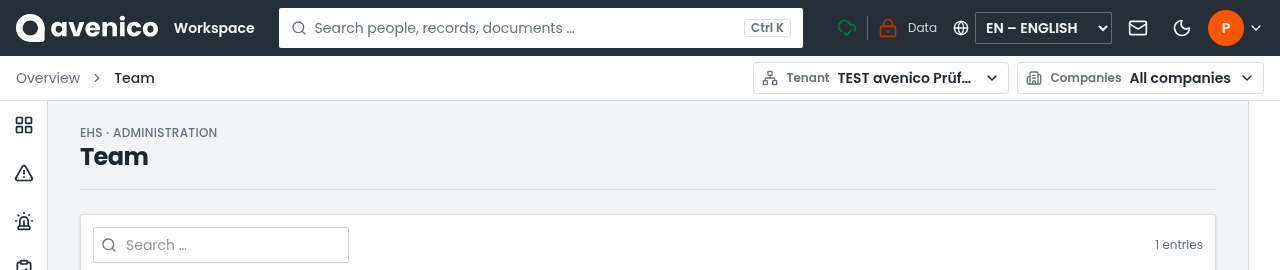
Example from a test account with fictional data - 2
In the Eigene Rollen (Your roles) section, check the Unternehmen (Company) column to see which companies your role is authorized for.
- 3
Click the Unternehmen (Company) selection button in the top header to check if your view is currently restricted to a specific company.
- 4
If the required company is missing from your role overview, contact an account owner or administrator to expand your company access.
What happens next
Troubleshooting
Does the global search allow access to non-authorized companies?
No. Search queries and main lists are strictly restricted on the server side to the companies assigned to your role.
Why does a newly created company not appear in the top selection list?
A new company will only appear in your selection list once tenant administration has assigned your account a role for that company.
Updated: 24/11/2026 · Version 2 · #38264628
Changes in this version: fix:2026-11-24:38264628