

Testing and Verifying a Workflow
Before releasing a workflow, check its conditions, approval steps, and notifications. This ensures cases are routed as expected.
Before you start
Hinweis:
- You have administrator privileges in the tenant.
- The workflow has been created or exists as a draft.
How to do it
- 1
In the navigation menu, go to Cases & workflows → Workflows.
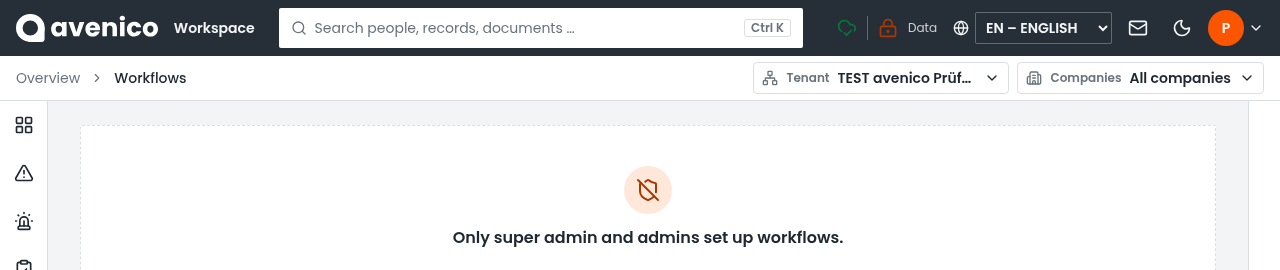
Example from a test account with fictional data - 2
Select the desired workflow from the list.
- 3
Review the configured steps, approval levels, and assigned roles.
- 4
Check the configured conditions and deadlines for notifications and escalations.
What happens next
Tipp: The workflow has been verified and can be activated for regular operations.
Troubleshooting
Achtung:
Why is the "Workflows" menu item not visible?
This entry is only visible to users with administrator privileges. Contact a tenant administrator if you need to configure workflows.
Updated: 24/11/2026 · Version 2 · #98158431
Changes in this version: fix:2026-11-24:98158431