

Change a member’s role and companies
How to change a person’s role, company scope or additional risk permission.
Before you start
- You are the owner (Superadmin) or an administrator. You cannot change your own role or the owner’s role here.
How to do it
- 1
In the navigation, open Members & roles.
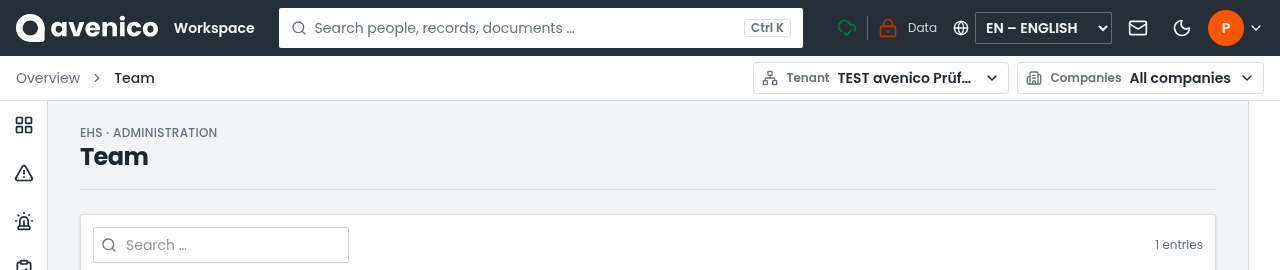
Example from a test account with fictional data - 2
Find the person in the member list using the Search … field and click Edit in their row.

Example from a test account with fictional data - 3
Below the list, Edit member opens with the person’s e-mail address. Choose the Role and the Company scope.
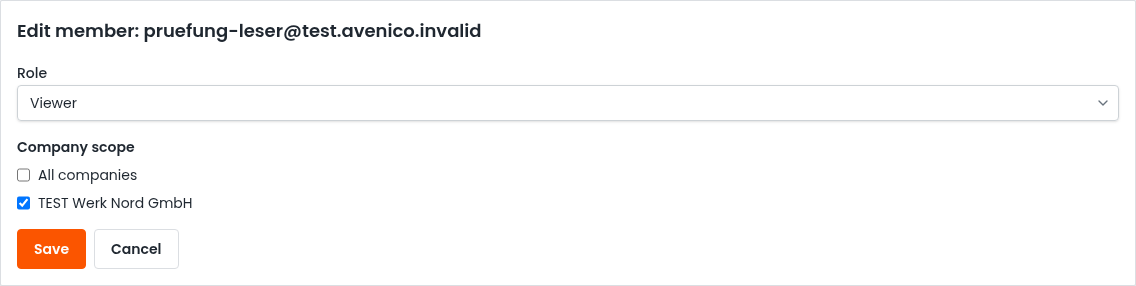
Example from a test account with fictional data - 4
Click Save. Cancel discards the change.
Example from a test account with fictional data - 5
For the Additional risk permission, tick or untick the box directly in the person’s row and confirm the prompt.
Example from a test account with fictional data
What happens next
Troubleshooting
“Edit” is missing for a person.
You cannot edit the owner or your own account here. The owner role is changed via the owner transfer.
I want finer permissions per area.
Under Custom roles, click Create role and assign it to the person. A custom role is never more than an administrator.
Updated: 24/11/2026 · Version 2 · #11924262
Changes in this version: fix:2026-11-24:11924262