

Create person
Record new employees in the employee files to centrally assign EHS processes, trainings, and medical checkups.
Before you start
- You have the role of Administrator or Editor.
- The corresponding company is set up in the system.
How to do it
- 1
In the menu, navigate to People → Employee files.
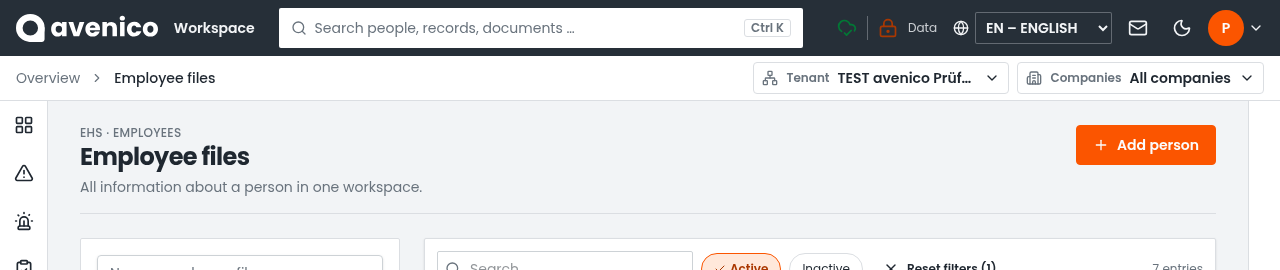
Example from a test account with fictional data - 2
Click the Person anlegen (Create person) button at the top.
- 3
Select the company and enter the name as well as contact details.
- 4
Add optional details such as job role, department, or internal employee ID.
- 5
Save the inputs to create the employee file.
What happens next
Troubleshooting
Why is the button to create a person not visible?
Check your user role. Only users with edit rights (such as Administrator or Editor) can add employee files.
What should I do if the person already exists in the system?
Use the search bar and the filter for company or status ('Inactive') to check whether an existing record can be reactivated.
Updated: 24/11/2026 · Version 2 · #40231784
Changes in this version: fix:2026-11-24:40231784