

Reviewing Cases and Deadlines
In the Cases & escalation section, you monitor open tasks, deadlines, and upcoming clarification steps.
Before you start
- You are logged into the tenant and have access to the Cases & workflows menu.
How to do it
- 1
Open Cases & workflows → Cases & escalation in the main navigation.
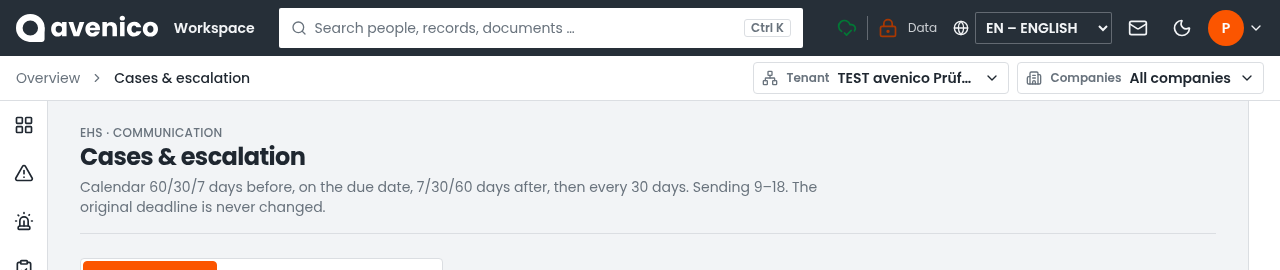
Example from a test account with fictional data - 2
Select the relevant tab such as the active cases list, dispatch list, or review tasks.
- 3
Review the columns for person, topic, deadline, and next step in the table.
- 4
Use Klärung übernehmen (Take over clarification) to initiate handling and enter feedback.
What happens next
Troubleshooting
What do the numbers in the tabs indicate?
The numbers next to tab labels show how many items are currently waiting for processing in that view.
Where does the location code for case numbers come from?
Location prefixes for case numbers are configured centrally in the company data settings.
Updated: 24/11/2026 · Version 2 · #43089766
Changes in this version: fix:2026-11-24:43089766