

Set up passkey
You set up a passkey to sign in quickly and securely without a password in the future. The setup connects your device directly to your account.
Before you start
- You have access to your registered email inbox.
- Your device and browser support passkeys (such as Windows Hello, Touch ID, Face ID, or a security key).
How to do it
- 1
In the top bar, click your profile icon and select the Sicherheit tab.
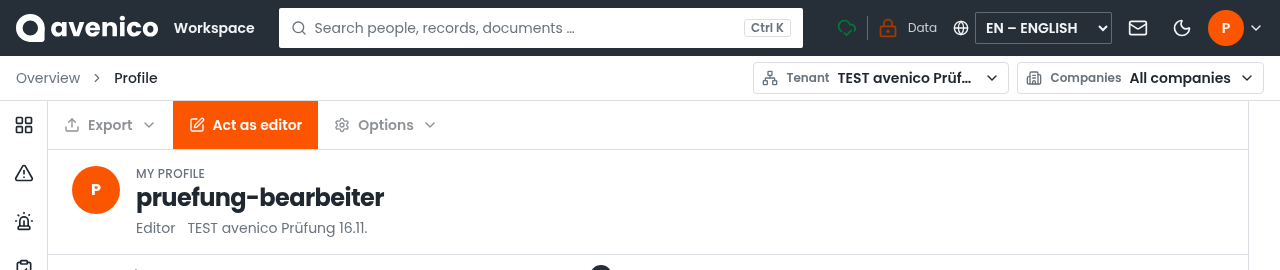
Example from a test account with fictional data - 2
Choose the option to add a passkey and request a verification code.
- 3
Open your email inbox and retrieve the six-digit code. The code is valid for ten minutes and allows five attempts.
- 4
Enter the code into the verification field and proceed.
- 5
Confirm the passkey creation prompt from your operating system or browser (e.g. via biometrics or PIN).
What happens next
Troubleshooting
The entered code is reported as invalid.
Check whether the ten minutes have expired or if you have had five failed attempts. Request a new code if necessary.
The operating system does not prompt for a passkey.
Ensure that a screen lock or biometric unlock method is configured on your device and that your browser supports passkeys.
Updated: 24/11/2026 · Version 2 · #54982034
Changes in this version: fix:2026-11-24:54982034