

Passkey is not working
If signing in with a passkey fails or a device was changed, the passkey must be reset and set up again. This guide walks you through resolving passkey issues.
Before you start
- You have permissions to manage employee files or you contact an administrator.
- Your device and browser support WebAuthn and passkeys with user verification.
How to do it
- 1
Navigate to People → Employee files.
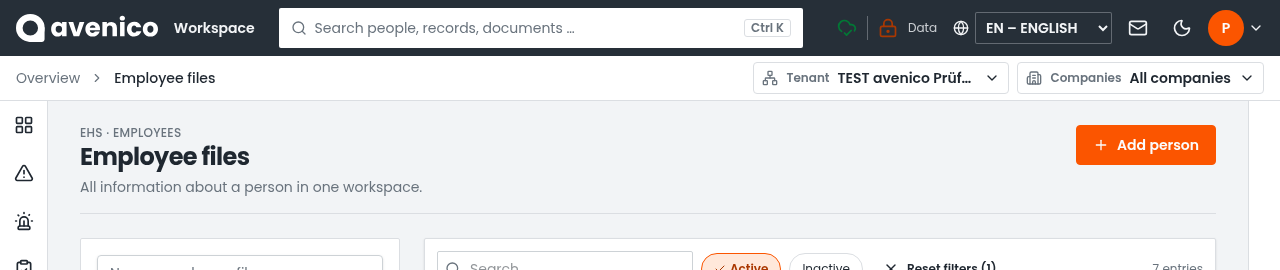
Example from a test account with fictional data - 2
Select the affected person from the list and open the access options via More actions to reset the passkey.
- 3
Have the person enter the new six-digit registration code in the login window within ten minutes (maximum five attempts).
- 4
Complete the passkey setup on the device using active user verification (such as fingerprint, facial recognition, or device PIN).
- 5
For workspace accounts, use device pairing via QR code (valid for five minutes) and confirmation code if needed.
What happens next
Troubleshooting
Is there read-only access with just the email code?
No, code-only access without passkey verification does not exist.
Are passkeys deleted from the device upon deactivation?
Passkeys remain on the device, but the server immediately blocks any further use upon deactivation.
Updated: 24/11/2026 · Version 2 · #33506949
Changes in this version: fix:2026-11-24:33506949