

Invite a member
How to give a colleague access to the workspace.
Before you start
Hinweis:
- You are the owner (Superadmin) or an administrator. Only these roles see the “Invite member” section.
How to do it
- 1
In the navigation, open Members & roles.
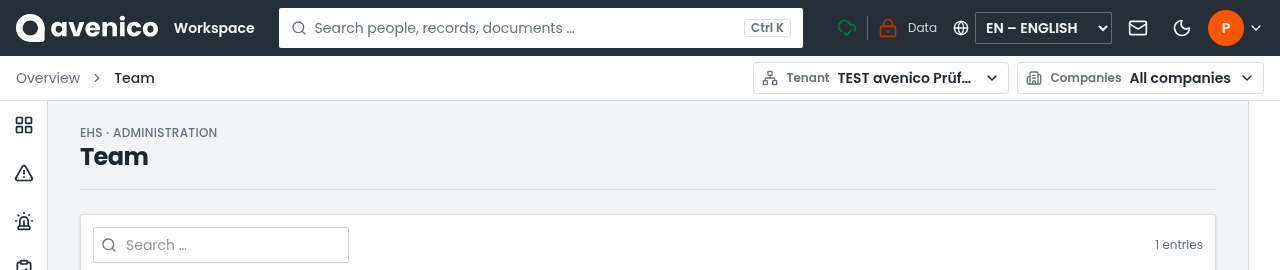
Example from a test account with fictional data - 2
In the Invite member section, enter the E-mail address and choose the Role.
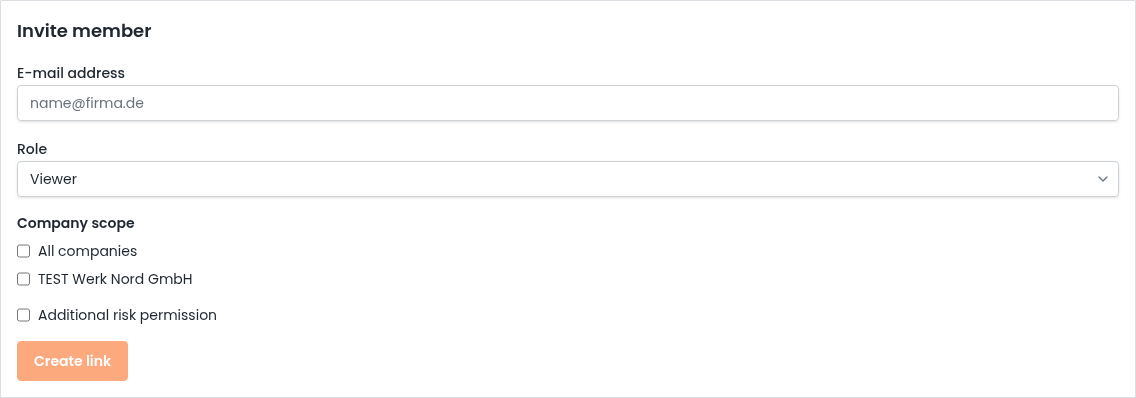
Example from a test account with fictional data - 3
Under Company scope, choose All companies or individual companies. Tick Additional risk permission if needed.
Example from a test account with fictional data - 4
Click Create link, copy the Invitation link shown and pass it on to the person.
Example from a test account with fictional data
What happens next
Tipp: The person opens the link, signs in with exactly this e-mail address and then appears in the member list. The link is valid for 7 days.
Troubleshooting
Achtung:
“Create link” is greyed out.
First enter an e-mail address and choose at least one company or “All companies”.
Achtung:
The “Administration” role is missing from the list.
Only the owner (Superadmin) can grant the administrator role.
Updated: 24/11/2026 · Version 2 · #22748103
Changes in this version: fix:2026-11-24:22748103