

Company Colors and Template
Customize your company's visual appearance using the company template. Accent colors, headings, and table surfaces define the look across views.
Before you start
- You have administrative rights (Administrator or Owner role).
- The required color codes for accents, headings, and text are ready.
How to do it
- 1
In the navigation menu, open Unternehmensdaten (Company data) and select the desired company from the list.
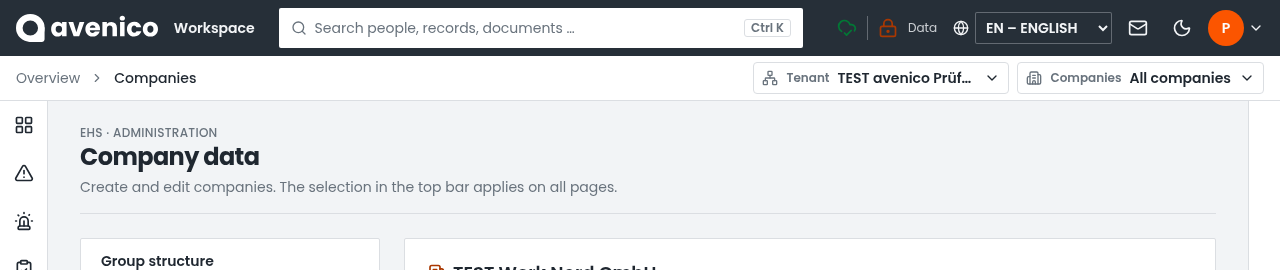
Example from a test account with fictional data - 2
Scroll down in the company profile to the Firmenvorlage section.
- 3
Adjust the color settings for Akzentfarbe, Überschriften, Textfarbe, and Tabellenflächen.
- 4
Verify color contrasts between text and backgrounds directly in the color fields.
What happens next
Troubleshooting
Why can't I see the company data section?
Access to company data is restricted to Administrator and Owner roles. Contact your organization administrator.
Why is text hard to read after changing color values?
Ensure sufficient brightness contrast between the text color, headings, accent color, and table surfaces for clear readability.
Updated: 24/11/2026 · Version 2 · #98406722
Changes in this version: fix:2026-11-24:98406722