

Setting up the occupational health portal
Companies configure service providers, contracts, services, and approvals for the occupational health portal. Newly configured portals start in an inactive state by default.
Before you start
- You have administrative permissions in the tenant area for the respective company.
- The company's master data and addresses are set up.
How to do it
- 1
Open Occupational medicine from the menu and click the Anfragen & Portal tab.
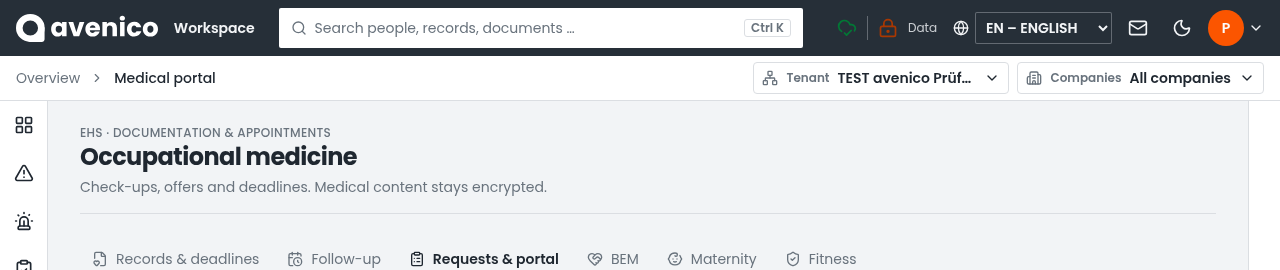
Example from a test account with fictional data - 2
Select the relevant company from the Unternehmen dropdown.
- 3
Go to the section for service providers, services, and approvals (Dienstleister, Leistungen & Freigaben) to enter provider and billing information.
- 4
Define the occupational medical services offered (such as mandatory, voluntary, aptitude, or radiation protection examinations).
- 5
Configure the approval chain for each service, including responsible roles, persons, and deadlines.
- 6
Review all settings and activate the portal for eligible employees.
What happens next
Troubleshooting
Is a newly created portal immediately visible to employees?
No. Newly created portals are inactive by default and must be explicitly activated once configured.
Does entering a service provider name prove a valid legal contract?
No. Registering a provider name or technical template does not replace an executed legal agreement or authorization.
Updated: 24/11/2026 · Version 2 · #97555290
Changes in this version: fix:2026-11-24:97555290