

Conducting instruction live
This article describes the process for live sessions and polls. The meeting link only becomes visible once the training lead starts the session.
Before you start
- A session with an online format has been created under Trainings → Trainings.
- The participants have confirmed bookings.
How to do it
- 1
Navigate to Trainings → Trainings and select the dates and booking tab.
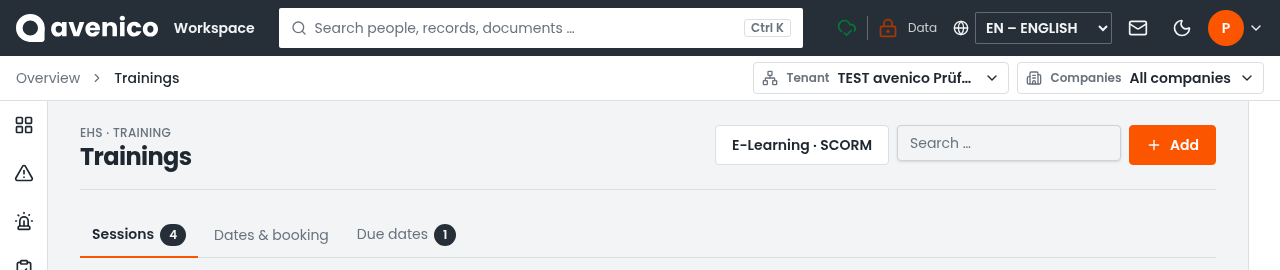
Example from a test account with fictional data - 2
Open the desired session from the list.
- 3
Click the button to start the session to release the meeting link.
- 4
Participants open their personal invitation link and join the meeting.
- 5
If needed, conduct live polls during the session.
- 6
End the session after concluding the meeting and record attendance.
What happens next
Troubleshooting
Can participants join the meeting before it is started by the lead?
No. The meeting link remains locked on the server side and is not released solely by reaching the scheduled time.
Does a live poll replace the individualized knowledge test?
No. Anonymous live polls are a separate process and do not count as personalized proof.
Updated: 24/11/2026 · Version 2 · #16358004
Changes in this version: fix:2026-11-24:16358004