

Components in the Workflow Editor
In the workflow editor, you configure multi-step processes for approvals, conditions, and reminders.
Before you start
- You have administrator privileges in the workspace to manage custom workflows.
How to do it
- 1
Open Cases & workflows → Workflows in the main menu.
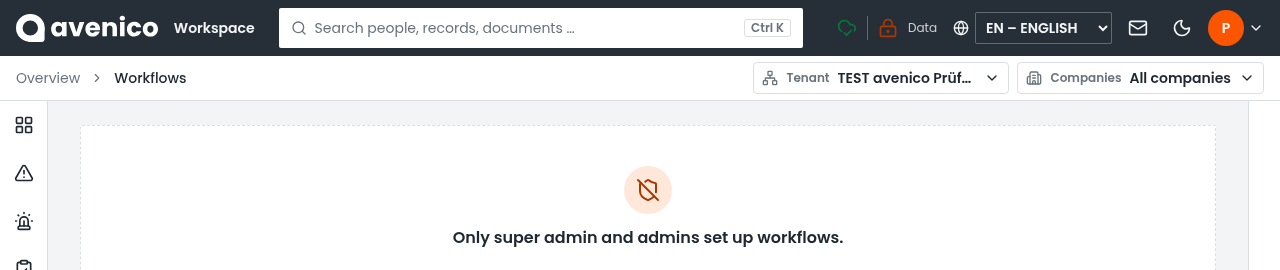
Example from a test account with fictional data - 2
Select an existing workflow for editing or create a new one.
- 3
Add the required steps such as approval, clarification, or reminder.
- 4
Assign responsible roles or groups to each step.
- 5
Save your configuration to apply the workflow steps.
What happens next
Troubleshooting
Why is the 'Workflows' menu item not visible to me?
This menu item is restricted to administrators. Contact your workspace administrator for access.
Do supervisors see medical diagnoses through workflow steps?
No, confidential medical findings and diagnoses remain protected and are never shared with supervisors in workflows.
Updated: 24/11/2026 · Version 2 · #45649711
Changes in this version: fix:2026-11-24:45649711