

Have Attendance Signed
Learn how to wrap up training sessions, record the instructor's sign-off, and collect participant signatures.
Before you start
- The training session has taken place and participant attendance has been confirmed.
- Any mandatory knowledge tests have been completed by the participants.
How to do it
- 1
Navigate in the menu to Trainings → Trainings.
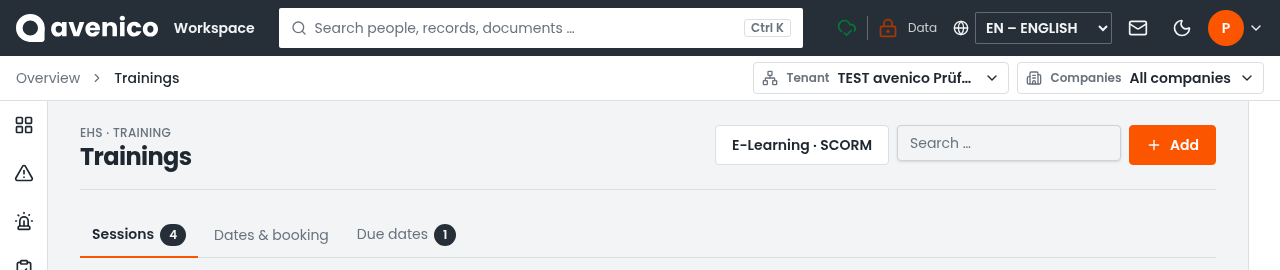
Example from a test account with fictional data - 2
Open the tab Dates & booking and select the completed training session.
- 3
Review the attendance list of participants and release the session wrap-up.
- 4
As the training lead, open the confirmation screen and provide your signature by text or drawing.
- 5
Have participants open their signature link via the employee portal or email notification to countersign their attendance.
What happens next
Troubleshooting
What happens if a participant reports that they were not present?
The signature step is held for that record until you verify and, if necessary, adjust the attendance in the session.
Is the drawn signature a biometric verification?
No. The system performs a technical check for completeness to avoid empty submissions, but does not conduct biometric analysis.
Updated: 24/11/2026 · Version 2 · #92115519
Changes in this version: fix:2026-11-24:92115519